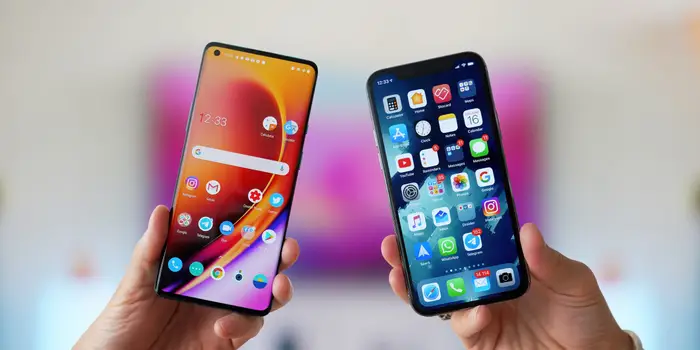
Switching phones can be an exciting experience, but it also poses potential risks to your data. Whether you’re moving from one smartphone to another or upgrading to the latest model, it’s essential to ensure your data remains safe and secure during the transition. This article outlines practical steps for protecting your information when switching phones.
1. Back Up Your Data
Before you make any changes, the first step is to back up all important data from your old phone. Both Android and iOS devices offer built-in backup options:
- For Android: Go to Settings > System > Backup. Ensure that your Google account is linked and the option to back up your data is turned on. You’ll have the choice to back up app data, call history, contacts, and more.
- For iOS: Use iCloud to back up your data. Navigate to Settings > [Your Name] > iCloud > iCloud Backup and tap Back Up Now. You can also use iTunes or Finder on your computer for a more comprehensive backup.
Backing up your data ensures that you won’t lose anything important during the switch.
2. Sync Your Accounts
Ensure all your essential accounts are synced before you switch devices. This includes:
- Google Account: Sync your contacts, calendar, emails, and photos. This can usually be done within the account settings on your old phone.
- Apple ID: For iPhone users, sign into your Apple ID to keep your apps, contacts, and documents secure and available on your new device.
- Third-Party Apps: Many apps, such as note-taking or task management tools, offer cloud syncing. Make sure these apps are updated and synced so that all your data transfers smoothly.
3. Deauthorize Your Old Device
Before you fully transition to your new phone, it’s advisable to deauthorize or unlink your old device from your accounts. Redline mobile step is particularly important for services like Apple Music, iTunes, or streaming services that limit the number of devices per account.
- For Apple devices: Open iTunes, click on Account, then Authorizations > Deauthorize This Computer.
- For Google accounts: You can remove devices by visiting your Google Account settings, navigating to Security, and reviewing which devices are linked.
Deauthorizing can help prevent any unauthorized access to your accounts.
4. Transfer Your Data Securely
Next, transfer the data to your new device securely. Both Android and iOS come with transfer tools to facilitate this process:
- Android to Android: Use the Google Switch app or Samsung Smart Switch for a seamless transfer. These tools allow you to wirelessly copy your apps, contacts, messages, and even media.
- iPhone to iPhone: Use the Quick Start feature during setup. This allows you to transfer data wirelessly between devices by scanning a code with your old phone.
- Cross-Platform: If you’re transitioning between Android and iOS, apps like Move to iOS can assist in transferring contacts, message history, photos, and more securely.
5. Protect Your Data on the New Device
Once you have successfully transferred your data, it’s crucial to take measures to protect your information on your new device:
Set Up Security Features
- Passwords and PINs: Always set a strong password or PIN for your new device. Biometric options like fingerprint scanning or facial recognition enhance security as well.
- Enable Two-Factor Authentication: For apps and services that support it, enable two-factor authentication. This adds an extra layer of security by requiring a verification code along with your password.
Install Security Software
Consider installing reputable security software to protect your data from malware and phishing attempts. Many options offer features like VPNs, data encryption, and app scans to enhance your phone’s security.
6. Wipe Your Old Device
After ensuring that all your data has been successfully transferred and backed up, don’t forget to wipe your old device. Resetting it to factory settings ensures your personal data is irretrievable.
- For Android: Go to Settings > System > Reset Options > Erase All Data (Factory Reset).
- For iOS: Navigate to Settings > General > Transfer or Reset iPhone > Erase All Content and Settings.
This step is crucial, especially if you plan to sell or donate your old device.
7. Monitor Your Accounts
After switching phones, keep an eye on your accounts for any suspicious activity. Regularly update your passwords and check your transaction history to ensure that everything is secure.
Conclusion
Switching phones can be smooth and secure if you follow the right steps. By backing up your data, syncing accounts, and taking security precautions, you can protect your personal information throughout the transition. With these best practices in mind, you can enjoy your new smartphone without worrying about data loss or breaches.